
Blog
How to Run a Linear Regression in Excel for WGU C207 Task 1

By Dan Palmer, MBA · Academic strategy consultant for working adult learners · LinkedIn
Two parts of WGU C207 Task 1 (QUM3, Linear Regression Analysis) happen inside Excel. C1 asks for “the output and calculations of the linear regression analysis you performed,” including the output from your software, and C2 asks for a scatter plot with a chart title, a legend, and axis titles. The directions strongly encourage Microsoft Excel, which WGU students can get through the Microsoft Office 365 subscription.
The regression itself takes seconds. What costs working adults an evening is the setup: a missing Data Analysis button, an “input range” error, swapped variables, or a scatter plot without a legend. This guide walks through each step in order, shows the settings to use in the Regression dialog, and ends with a practice workbook that lets you run a regression on fictitious data and check your output against an answer sheet.
For the full report, see our WGU C207 Task 1 guide and example.
Before You Start: Use Desktop Excel
Open your “Linear Regression Analysis Resources” workbook in desktop Excel, enter your student ID on the Start tab, and find your dataset. Microsoft lists the Analysis ToolPak for desktop versions of Excel for Microsoft 365, Excel 2024, and Excel 2021, on Windows and Mac (Microsoft, n.d.-a). If you only have a browser version open, install the desktop app from your WGU Office 365 account before going further.
Step 1: Load the Analysis ToolPak
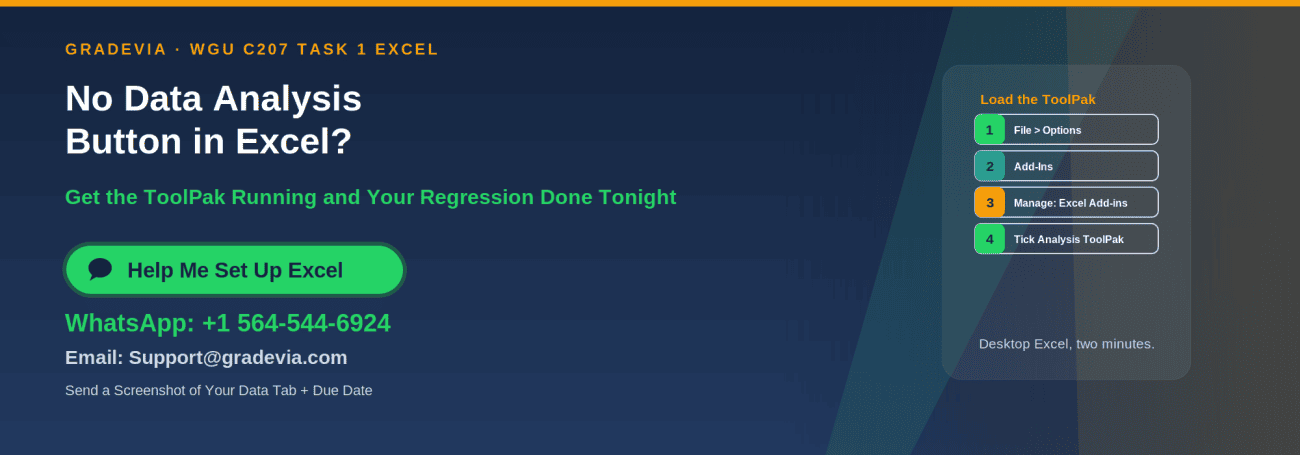
On Windows (Microsoft, n.d.-a):
- Go to File > Options > Add-Ins.
- In the Manage box, choose Excel Add-ins, then select Go.
- Check Analysis ToolPak and select OK. If Excel says it isn’t installed, select Yes to install it.
On a Mac, the add-ins are under the Tools menu; Microsoft’s support page has a macOS tab with the steps for your version. Either way, you’ll know it worked when a Data Analysis button appears at the right end of the Data tab.
Step 2: Prepare Your Data
A few minutes here prevents most errors:
- Copy the dataset to a new sheet, so the original stays untouched.
- Put headers in row 1 and the data directly underneath, with no blank rows.
- Keep every cell numeric. A blank, a text note, or a symbol such as “N/A” inside the range stops the regression.
- Know which column is which. The dependent variable (the outcome) is Y. The independent variable (the predictor) is X.
- If you have more than one independent variable, place those columns side by side, so they can be selected as one block. The Regression tool accepts up to 16 independent variables (Better Solutions, 2026).
Step 3: Run the Regression
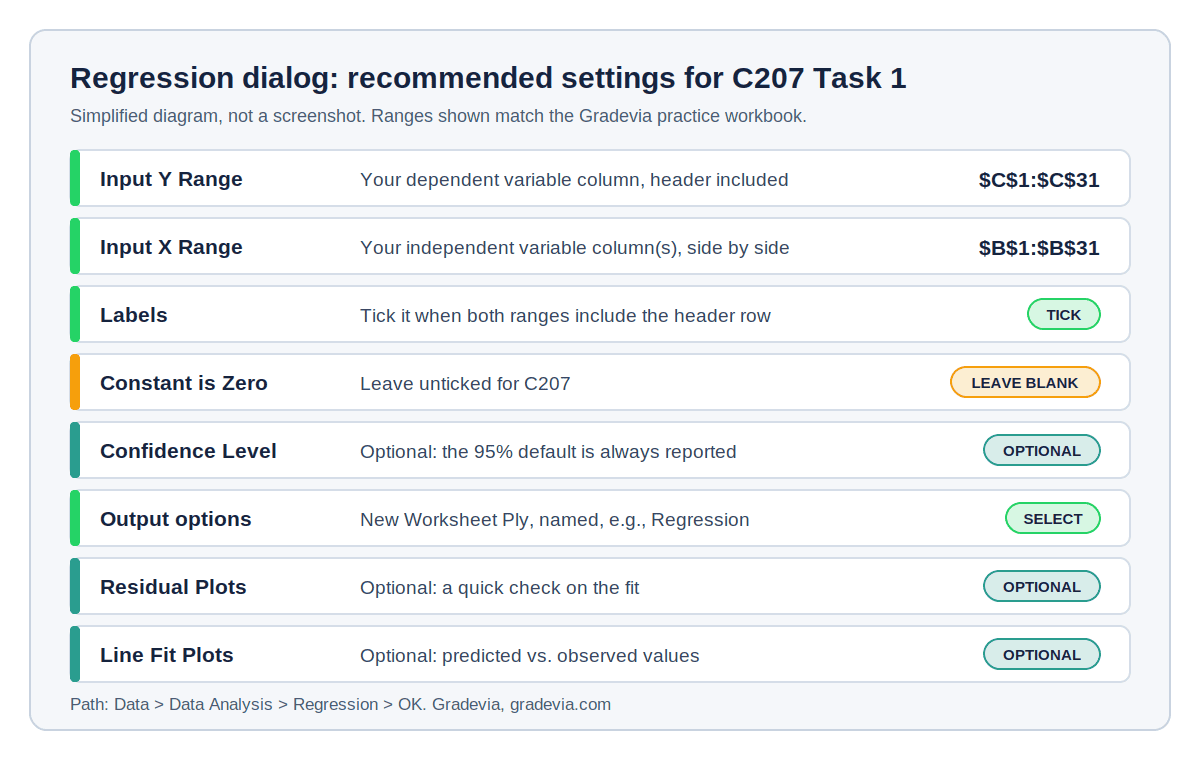
Choose Data > Data Analysis > Regression > OK, then fill in the dialog:
| Setting | What to enter |
|---|---|
| Input Y Range | Your dependent variable column, including the header |
| Input X Range | Your independent variable column(s), including the header |
| Labels | Tick it, because both ranges include the header row |
| Constant is Zero | Leave it unticked; it forces the line through the origin |
| Confidence Level | Optional; the 95% intervals are reported by default |
| Output options | New Worksheet Ply, with a name such as Regression |
| Residual Plots | Optional; useful for checking the fit |
| Line Fit Plots | Optional; plots predicted against observed values |
Select OK. Excel creates a new sheet with the summary output (Better Solutions, 2026).
Step 4: Know What the Output Contains
The summary output has three tables. Here’s where each part of your report draws from them:
| Table | Key values | Used in |
|---|---|---|
| Regression Statistics | Multiple R, R Square, Adjusted R Square, Standard Error, Observations | D1a (fit), B1 (sample size) |
| ANOVA | df, SS, MS, F, Significance F | D1a (the supporting test statistic) |
| Coefficients | Intercept and slope, standard errors, t Stat, P-value, 95% bounds | D1b (significance), D1c (equation) |
Two quick checks: Observations should equal your number of data rows, and in a simple linear regression the slope’s P-value equals Significance F. If either is off, recheck your ranges. Our guide to interpreting your C207 Task 1 regression output explains every number.
Step 5: Build the C2 Scatter Plot
C2 requires a chart title, a legend, and axis titles. The directions add that the chart should summarize the data, not reproduce the raw table.
- Select the X column, then the Y column, with their headers. When two adjacent columns are selected, Excel plots the left one on the horizontal axis, so put X on the left.
- Choose Insert > Scatter and pick the plain markers option.
- Edit the chart title to describe both variables, such as “Ad Spend vs. Online Orders.”
- Use the Chart Elements button (the plus sign beside the chart) to add Axis Titles and a Legend. Name each axis with its variable and unit.
- In the same menu, add a Trendline, choose Linear, and in More Options tick Display Equation on chart and Display R-squared value on chart.
- Rename the series so the legend says something meaningful, such as “Weeks (n = 30),” through Select Data > Edit.
A legend matters even with one series, because C2 lists it as required.
If You Have More Than One Independent Variable
Select all the X columns together as the Input X Range; Excel reports a coefficient and P-value for each. A scatter plot shows only one predictor at a time, so plot the predictor your business question focuses on, or make one chart per predictor, and say which you’ve shown.
Double-Checking With Formulas
If you want to confirm the ToolPak output, Excel’s LINEST function returns the same statistics. With stats set to TRUE, it returns coefficients in the first row, their standard errors in the second, then R² and the standard error of the estimate, F and the degrees of freedom, and the regression and residual sums of squares (Microsoft, n.d.-b). RSQ, SLOPE, INTERCEPT, and STEYX return single values. Our practice workbook uses these to build its answer sheet.
Getting the Output Into Your Report
C1 asks for your software output, so paste the actual tables rather than retyping numbers. Copy the output block and paste it into Word as a table, or as a picture if the formatting shifts, making sure all three tables are readable. Then copy the chart into Word and add a figure caption.
Common Excel Errors and Fixes
| What you see | Likely cause | Fix |
|---|---|---|
| No Data Analysis button | ToolPak not loaded | Repeat Step 1 |
| “Input range contains non-numeric data” | A blank, text, or symbol inside the range, or Labels unticked while headers are selected | Clean the data, or tick Labels |
| Slope has the wrong sign or size | Y and X ranges swapped | Y is the outcome; rerun with the ranges reversed |
| Observations count is wrong | Range too short or too long | Reselect the full columns |
| Scatter plot axes look reversed | Y column is on the left | Put X on the left, or switch the series values in Select Data |
| Legend missing | Not added in Chart Elements | Chart Elements > Legend |
C207 Task 1 Excel Example: Practice Workbook
Our C207 Task 1 Excel example is a practice workbook for Ridgeline Outfitters, a fictitious retailer, with 30 weeks of fictitious data on advertising spend and online orders. Instead of handing you output, it lets you run the regression yourself and check it. It includes:
- A Start Here sheet with the exact steps, ranges, and settings
- A Practice Data sheet set up the way Step 2 describes
- A Check Your Output sheet with values calculated by formulas, to match, including R² (0.9045), the slope (6.7328), and the slope’s p-value (8.26E-16)
- A Scatter Plot sheet with a chart title, legend, axis titles, and a linear trendline
- A list of the common errors and their fixes
Your C207 dataset is generated from your own student ID, so your variables and results will differ. Practicing on this workbook first means the real run takes one attempt.
Download the C207 Excel regression practice workbook (.xlsx)
Pre-Submission Checklist for C1 and C2
- Regression run with the dependent variable as Y and Labels ticked
- Observations match your number of data rows
- All three output tables pasted into your report, readable
- Scatter plot has a chart title, a legend, and both axis titles
- Axis titles name each variable and its unit
- Chart pasted into your report with a figure caption
Related C207 Resources
- Our WGU C207 Task 1 guide and example covers the whole report, with a full example and workbook.
- Our guides to writing the null hypothesis, linear regression concepts for A3, B1, and D2, and interpreting your output cover the other parts.
- Browse all of our C207 Data-Driven Decision Making guides.
Frequently Asked Questions
How do I run a linear regression in Excel for C207 Task 1?
Load the Analysis ToolPak, choose Data > Data Analysis > Regression, set your dependent variable as the Input Y Range and your independent variable as the Input X Range, tick Labels, and output to a new worksheet.
Why don’t I see the Data Analysis button?
The Analysis ToolPak isn’t loaded. On Windows, go to File > Options > Add-Ins, choose Excel Add-ins, select Go, and check Analysis ToolPak.
Which variable goes in the Input Y Range?
The dependent variable, the outcome your business question is trying to explain or predict.
Does the scatter plot need a legend if there’s only one series?
Yes. C2 lists a chart title, a legend, and axis titles as required elements. Rename the series so the legend is meaningful.
Can I retype the output into a table instead of pasting it?
C1 asks for the output from the software you used, so paste the actual output tables.
Can I use the practice workbook for my submission?
No. Its company and data are fictitious, and your dataset is generated from your own student ID. It’s for practice only.
Want Help Getting Excel Working?
If you’re working full time and want structured assignment support loading the ToolPak, fixing an input range error, or getting your output and scatter plot into your report correctly, message Gradevia on WhatsApp at +1 564 544 6924 or email Support@gradevia.com.
Sources
Better Solutions. (2026, October 8). Analysis ToolPak: Regression. https://bettersolutions.com/excel/add-ins/analysis-toolpak-regression.htm
Microsoft. (n.d.-a). Load the Analysis ToolPak in Excel. Microsoft Support. https://support.microsoft.com/help/6a63e598-cd6d-42e3-9317-6b40ba1a66b4
Microsoft. (n.d.-b). LINEST function. Microsoft Support. https://support.microsoft.com/en-us/Excel/functions/linest-function